

Prerequisites
Before you begin, ensure you have:- Administrator access to your Okta tenant
- A Brellium admin account with permissions to authorize integrations
Supported features
The Brellium Okta integration supports the following features:- SP-initiated SSO — Users can sign in to Brellium from the Brellium sign-in page, which redirects to Okta for authentication.
- IdP-initiated SSO — Users can sign in to Brellium directly from the Okta dashboard by clicking the Brellium tile.
- Just-In-Time (JIT) provisioning — User accounts are automatically created in Brellium on first sign-in through Okta. The following attributes are provisioned:
- Email address
- Full name
- SP-initiated Single Logout (SLO) — Users who sign out from Brellium also have their Okta session terminated.
- Universal Logout — Okta administrators or the Okta system can terminate Brellium sessions. Universal Logout is triggered when:
- An administrator initiates a logout from the Okta Admin Console
- The Okta system detects a security risk and terminates sessions
To provision and deprovision users in Brellium using SCIM, see the SCIM Provisioning Configuration guide.
Express Configuration steps
1
Add the Brellium app in Okta
- Sign in to the Okta Admin Console.
- Go to Applications > Browse App Catalog.
- Search for Brellium.
- Click Add Integration.
- On the General Settings tab, configure the application label if needed, then click Done.
2
Configure SSO and Universal Logout with Express Configuration
- In the Brellium app instance in your Okta org, click the Sign On tab.
- Click Express Configure SSO & UL in the Express Configuration for Brellium section. You are redirected to the Brellium sign-in page.
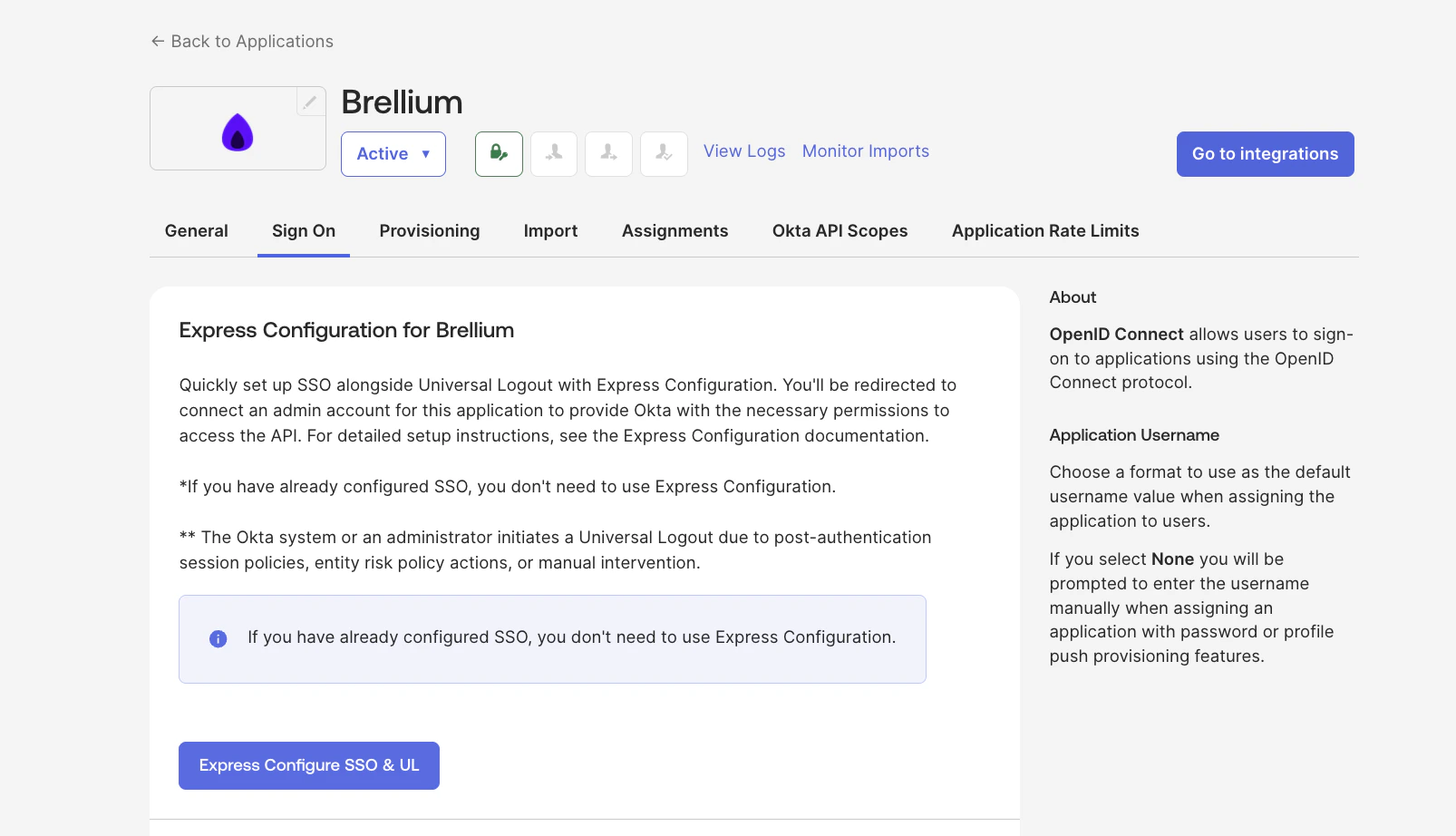
Express Configure SSO & UL button on the Sign On tab
- Sign in to Brellium using your admin credentials.
- On the consent page, review the Authorize App details to grant Okta access to Brellium, then click Accept.
3
Set the Application username format
- In the Brellium app instance, click the Sign On tab.
- Under Credentials Details, change the Application username format from the default Okta Username to Email.
- Click Save.
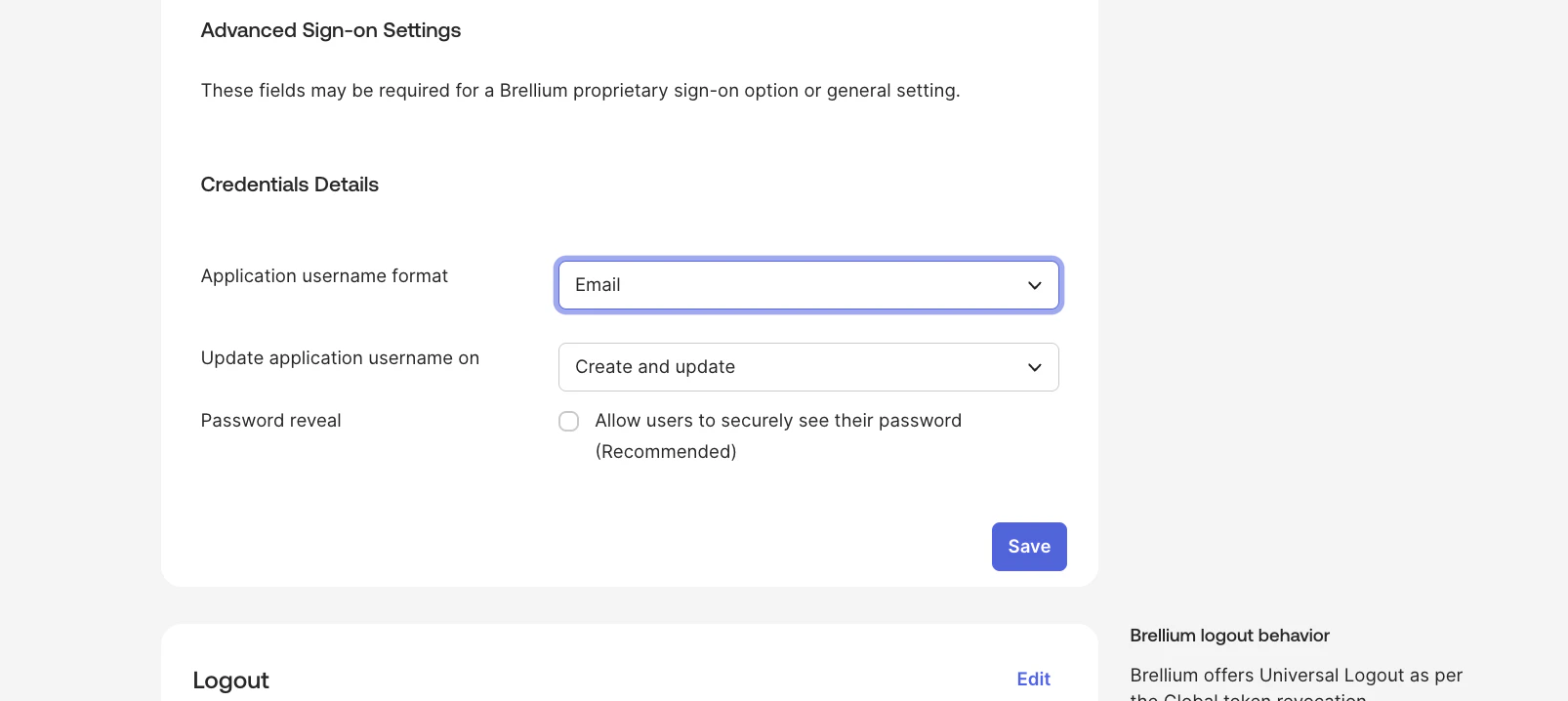
Application username format set to Email
4
Enable Universal Logout
- In the Brellium app instance, click the Sign On tab.
- In the Universal Logout section, verify that the Okta system or admin initiates logout option is enabled.
5
Assign users
- In the Brellium app instance, click the Assignments tab.
- Click Assign > Assign to People (or Assign to Groups).
- Select the users or groups to assign and click Assign.
- Click Save and Go Back, then click Done.
6
Verify the configuration
Verify that SSO and Universal Logout are working correctly.Verify IdP-initiated SSO:
- Sign in to the Okta dashboard as an assigned test user.
- Click the Brellium tile.
- Confirm that you are signed in to Brellium without being prompted for additional credentials.
- Open a new browser window and go to the Brellium sign-in page.
- Click Sign in with Okta.
- Enter your Okta credentials.
- Confirm that you are signed in to Brellium.
- Sign in to Brellium via Okta as a test user.
- From the Okta Admin Console, terminate the user’s session.
- Confirm that the user’s Brellium session is also terminated.
SP-initiated SSO
After the integration is configured, users can sign in to Brellium using one of the following methods:For SP-initiated SSO, users must access Brellium through one of the options below. Direct sign-in at
app.brellium.com without a verified domain will not automatically redirect to Okta.https://myorganization.brellium.app). You are automatically redirected to Okta for authentication.
Option 2: Sign in with a verified domain
If your organization has configured verified domains:
- Go to https://app.brellium.com.
- Enter your email address.
- You are automatically redirected to Okta for authentication based on your email domain.
Troubleshoot
Support
If you have questions or encounter issues not covered in this guide, contact the Brellium support team:- Email: sso.support@brellium.com